> ## Documentation Index
> Fetch the complete documentation index at: https://docs.godiligent.ai/llms.txt
> Use this file to discover all available pages before exploring further.
# OKTA Integration Setup
> Step-by-step guide to configure OKTA SSO integration with Diligent
## Overview
This guide walks you through setting up OKTA Single Sign-On (SSO) integration with Diligent. Follow these steps to enable your team to authenticate using your OKTA account.
You'll need admin access to your OKTA Admin Console to complete this setup.
## Step 1: Create a New App Integration
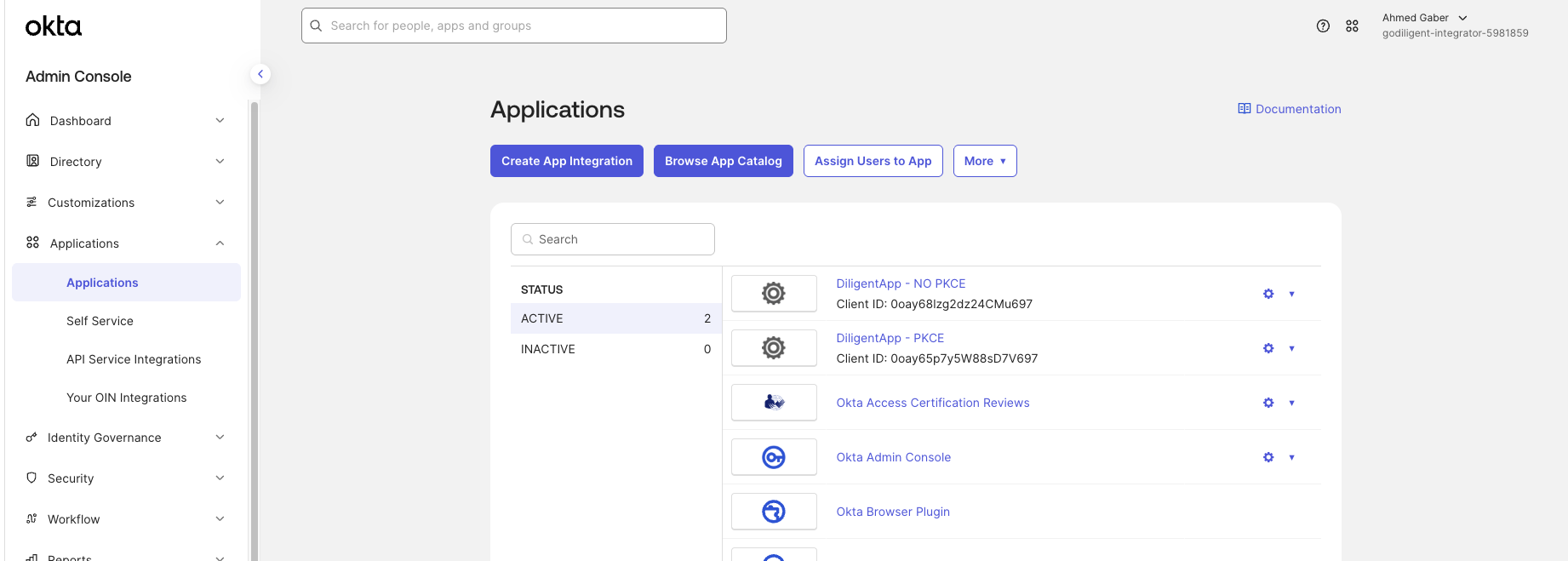
1. Log in to your **OKTA Admin Console**
2. Navigate to **Applications** in the left sidebar
3. Click the **Create App Integration** button
 ## Step 2: Select Sign-in Method and Application Type
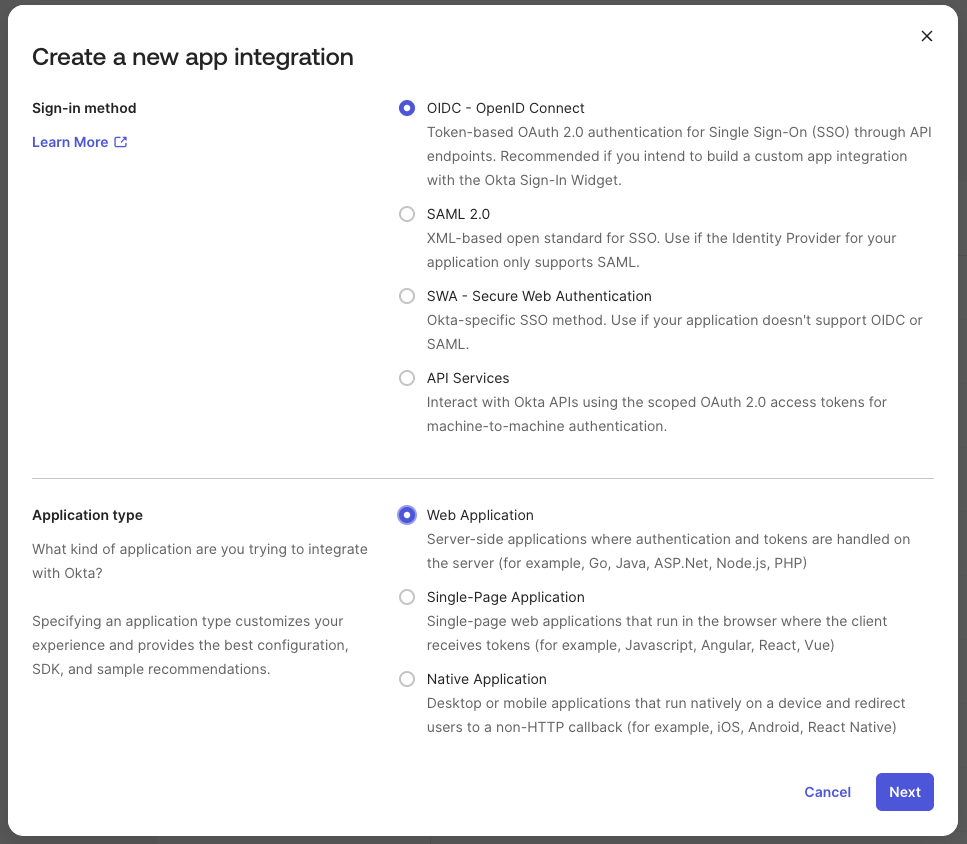
In the "Create a new app integration" dialog:
1. **Sign-in method**: Select **OIDC - OpenID Connect**
* This provides OAuth 2.0 authentication for Single Sign-On (SSO) through API endpoints
2. **Application type**: Select **Web Application**
* Server-side applications where authentication and tokens are handled on the server
3. Click **Next** to continue
## Step 2: Select Sign-in Method and Application Type
In the "Create a new app integration" dialog:
1. **Sign-in method**: Select **OIDC - OpenID Connect**
* This provides OAuth 2.0 authentication for Single Sign-On (SSO) through API endpoints
2. **Application type**: Select **Web Application**
* Server-side applications where authentication and tokens are handled on the server
3. Click **Next** to continue
 ## Step 3: Configure Login Settings
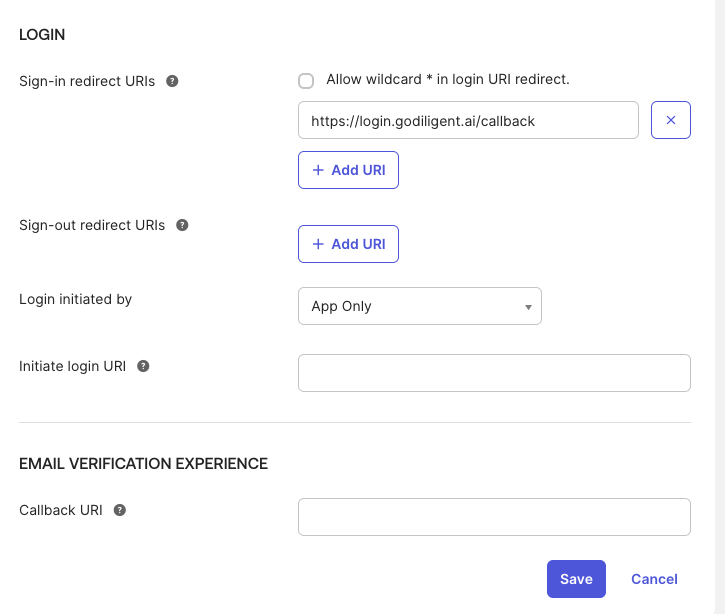
Configure the following settings:
### App integration name
Enter a name for your app integration, e.g., "DiligentAI"
### Sign-in redirect URIs
Add your Diligent callback URL:
```
https://login.godiligent.ai/callback
```
4. Click **Save** to create the application
## Step 3: Configure Login Settings
Configure the following settings:
### App integration name
Enter a name for your app integration, e.g., "DiligentAI"
### Sign-in redirect URIs
Add your Diligent callback URL:
```
https://login.godiligent.ai/callback
```
4. Click **Save** to create the application
 ## Step 4: Configure Client Credentials
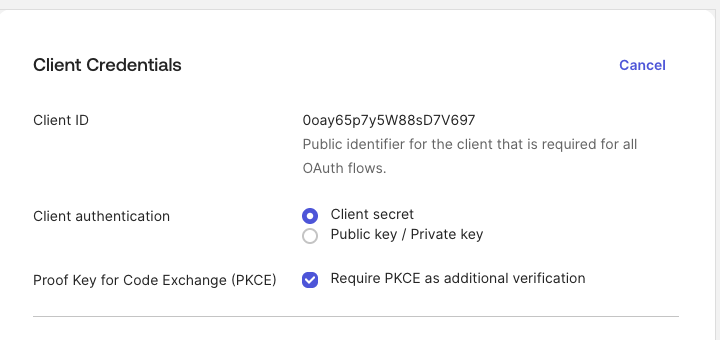
After saving, you'll see the **Client Credentials** page:
1. **Client ID**: This is automatically generated (e.g., `0oay65p7y5W88sD7V697`)
* This is the public identifier required for all OAuth flows
2. **Client authentication**: Select **Client secret**
* This option uses a client secret for authentication
3. **Proof Key for Code Exchange (PKCE)**: Check **Require PKCE as additional verification**
* This adds an extra security layer to the authentication flow
## Step 4: Configure Client Credentials
After saving, you'll see the **Client Credentials** page:
1. **Client ID**: This is automatically generated (e.g., `0oay65p7y5W88sD7V697`)
* This is the public identifier required for all OAuth flows
2. **Client authentication**: Select **Client secret**
* This option uses a client secret for authentication
3. **Proof Key for Code Exchange (PKCE)**: Check **Require PKCE as additional verification**
* This adds an extra security layer to the authentication flow
 ## Step 5: Retrieve Client Credentials
1. On the Client Credentials page, copy your **Client ID**
2. Click **Show** or navigate to the credentials section to reveal your **Client Secret**
3. Copy the **Client Secret**
Keep your Client Secret secure. Never share it publicly or commit it to version control.
## Step 6: Share Credentials with Diligent
Send the following information to our support team at **[support@godiligent.ai](mailto:support@godiligent.ai)**:
* **Client ID**: `[Your Client ID]`
* **Client Secret**: `[Your Client Secret]`
* **OKTA Domain**: `[Your OKTA domain, e.g., yourcompany.okta.com]`
Our team will configure the integration on our end and notify you once it's ready.
## Testing the Integration
Once our team confirms the integration is complete:
1. Navigate to `https://app.godiligent.ai`
## Step 5: Retrieve Client Credentials
1. On the Client Credentials page, copy your **Client ID**
2. Click **Show** or navigate to the credentials section to reveal your **Client Secret**
3. Copy the **Client Secret**
Keep your Client Secret secure. Never share it publicly or commit it to version control.
## Step 6: Share Credentials with Diligent
Send the following information to our support team at **[support@godiligent.ai](mailto:support@godiligent.ai)**:
* **Client ID**: `[Your Client ID]`
* **Client Secret**: `[Your Client Secret]`
* **OKTA Domain**: `[Your OKTA domain, e.g., yourcompany.okta.com]`
Our team will configure the integration on our end and notify you once it's ready.
## Testing the Integration
Once our team confirms the integration is complete:
1. Navigate to `https://app.godiligent.ai`
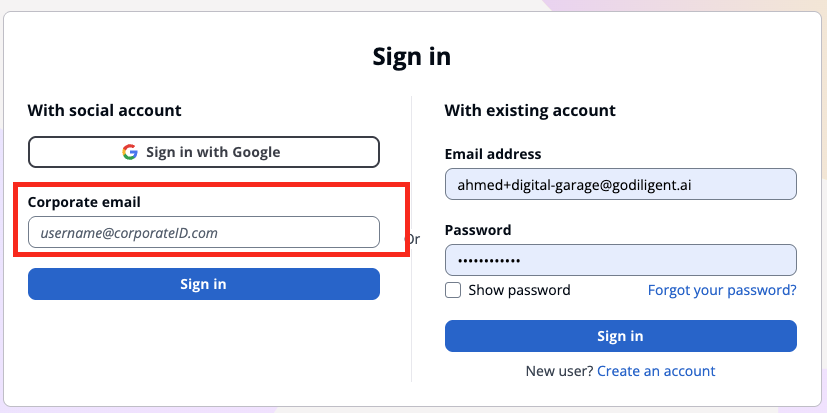 2. Click **Sign in with corproate email**
3. You'll be redirected to your OKTA login page
4. Enter your OKTA credentials
5. You'll be redirected back to Diligent and logged in
## Troubleshooting
Make sure you've assigned the users or groups to the application in the Assignments tab.
Verify that the Sign-in redirect URI in OKTA matches exactly: `https://login.godiligent.ai/callback`
Contact [support@godiligent.ai](mailto:support@godiligent.ai) with the error message. We'll verify the Client ID and Secret are configured correctly.
## Need Help?
If you encounter any issues during setup:
* Email: [support@godiligent.ai](mailto:support@godiligent.ai)
* Include your OKTA domain and any error messages you're seeing
2. Click **Sign in with corproate email**
3. You'll be redirected to your OKTA login page
4. Enter your OKTA credentials
5. You'll be redirected back to Diligent and logged in
## Troubleshooting
Make sure you've assigned the users or groups to the application in the Assignments tab.
Verify that the Sign-in redirect URI in OKTA matches exactly: `https://login.godiligent.ai/callback`
Contact [support@godiligent.ai](mailto:support@godiligent.ai) with the error message. We'll verify the Client ID and Secret are configured correctly.
## Need Help?
If you encounter any issues during setup:
* Email: [support@godiligent.ai](mailto:support@godiligent.ai)
* Include your OKTA domain and any error messages you're seeing